
Download Sky247 for PC Windows and MacOS
Use the official desktop application to enjoy sports betting, live casino, roulette, slots, and table games on your computer. The app is free to download, supports Windows and macOS, and mirrors the Sky247 website features while giving faster loading, stable performance, and a focused full-screen experience for betting and casino play.
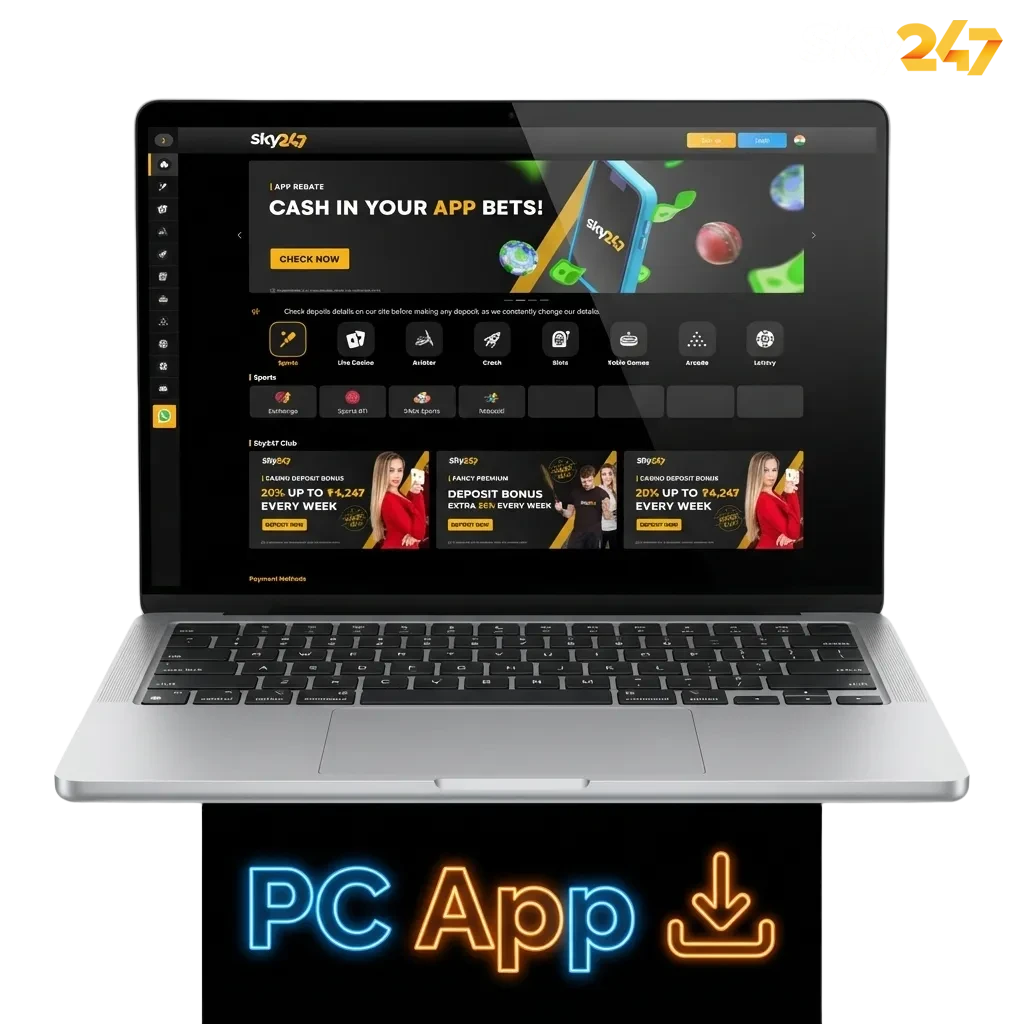
Sky247 PC Client Review
The Sky247 app for PC gives you a stable, focused way to bet and play casino games from your desktop or laptop. You get quicker navigation than on the website, fewer browser-related lags, and a clean full-screen layout that suits long betting sessions.
| Characteristic | Information |
|---|---|
| PC Client Size | Around 80–120 MB (varies by version and system) |
| Available Languages | English, Hindi, Bengali, Telugu, Tamil |
| Category | Sports betting, Online casino, Live casino, Slots, Table games, Instant games |
| Compatible with Windows | Windows 10, Windows 11, 64-bit systems |
| Compatible with macOS | macOS 11 Big Sur or newer on Intel and Apple Silicon |
Pros and Cons of Using Sky247 PC
Installing the desktop client on your computer gives a stronger betting and casino experience than a normal browser tab. Here is a quick view of the main advantages and a few minor drawbacks before you start the Sky247 download for PC.
| Pros | Cons |
|---|---|
| Faster loading compared to most browsers | Needs free space on your hard drive |
| Stable performance during live betting and live casino | Manual updates may be required if auto-update is disabled |
| Full-screen gaming that suits HD slots and live tables | App is not available for very old operating systems |
| Dedicated login window keeps your account ready in a few clicks | |
| Fewer distractions than regular website browsing | |
| Easy access icon on desktop for quick betting sessions | |
| Optimised interface for mouse and keyboard control |
Download and Install the Sky247 App on Windows
The Sky247 app for Windows is designed to run on most modern computers that meet basic system requirements like a 64-bit operating system, 4 GB RAM, and a stable internet connection. It supports common versions such as Windows 10 and Windows 11, so you can finish the Sky247 download for PC and start betting in a few minutes.
- Click the download button below. Tap the download Sky247 for Windows button on this official website to save the setup file to your computer.
- Locate the installer file. Open your Downloads folder and find the PC installer file you just saved.
- Run the installer. Double-click the file, confirm that you trust this official source, and follow the on-screen instructions in the setup window.
- Finish installation. Choose your install location, let the process complete, and wait for the shortcut icon to appear on your desktop.
- Launch and login. Open the Sky247 app for PC from the desktop icon, enter your login details or register a new account, and start betting or playing casino games.
Download and Install the Sky247 App on Mac
The Mac version is built for modern macOS devices, including many Intel and Apple Silicon models, so you can enjoy the same betting and casino options on your Mac desktop or MacBook. The process is quick and uses a familiar drag-and-drop style install.
- Click the Mac download button. Use the button on this official website to start the Sky247 download for PC version that is compatible with macOS.
- Open the downloaded file. Go to your Downloads folder and double-click the DMG or PKG file to open the installer window.
- Install the application. Drag the app icon into your Applications folder or follow the guided steps, giving permissions if macOS asks for confirmation.
- Allow the app in security settings if required. If your Mac blocks the app as an unidentified developer, open System Settings → Privacy & Security and allow the app from the message shown.
- Launch and login on Mac. Open the app from Applications or Spotlight search, login to your account or complete registration, and start betting or casino play on your Mac.
Update the PC Client
Keeping the Sky247 app for PC updated gives you the latest features, better stability, and the most recent security improvements. Updates also fix small bugs that can affect betting slips, live casino streaming, or account actions.
- Open the PC application. Double-click the Sky247 icon on your computer to access the betting and casino lobby.
- Check for update prompt. If a new version is available, you may see an update pop-up; confirm to start the download and let the system install the latest files.
- Use the settings menu if needed. If you do not see a pop-up, go to the settings or information section inside the app and select the option to check for updates.
- Restart the app. After the update completes, close the program and reopen it so that all new features and fixes load correctly on your computer.
Register and Start Betting with the PC App
Registration through the PC application takes only a few minutes and gives you full access to sports betting, casino games, payment methods, and account management. Once you sign up, you can use a single login across computer and mobile website.
- Open the app on your computer. Launch the Sky247 app for PC from your desktop or start menu.
- Choose the registration option. Click on the Sign Up or Register button on the home screen to open the registration form.
- Fill in your details. Enter mobile number, email, name, password, and any other required information; if multiple options exist, pick your preferred registration method and complete the fields.
- Confirm and login. Submit the form, verify your account if asked by SMS or email, then use your new login details to enter the app and start placing bets or playing casino games.
Play on the Sky247 Official Website
Installing the Sky247 app for PC is optional, so you can still enjoy the full platform directly in your browser. The official website offers sports betting, live casino, slots, and table games in the same account that you use on desktop and mobile. You can complete registration, login, deposit, withdraw, and place bets from any supported browser on your computer. This is a good option if you do not want to install software or if you are using a shared device where a desktop app is not convenient.

Support for Desktop Users
Desktop users get access to the same customer support options as mobile and website players, so you always have help for login, account, payment, or betting questions. You can contact support through several channels and choose the one that suits your style.
- Live Chat. Open the live chat widget on the official website or inside the PC app to talk to a support agent in real time.
- Email Support. Send a detailed message to [email protected] including your registered mobile number, user ID, and issue description.
- Phone Support. Call the India support line at +91 9007786429 during working hours for urgent account or payment issues.
- Social Media. Reach out through the official pages on platforms like Facebook, Instagram, or Telegram for quick questions and latest information.
FAQ
Is the PC app free to download and use?
Yes, the Sky247 download for PC is free; you only pay for the bets or casino stakes you place.
Can the app run on a low-spec computer?
The client is light and can run on many basic systems, but a recent Windows or macOS version, 4 GB RAM, and stable internet give a better experience.
Is the desktop client safer than using a browser?
The app connects to the same secure servers as the website and reduces risk from harmful browser extensions or fake tabs, as long as you download it only from the official website.
Can I use the same account on PC and mobile?
Yes, one registration covers computer, mobile app, and browser, so your balance, bets, and casino history stay in a single account.
What should I do if the app does not open?
First restart your computer, check your internet, and make sure your operating system is supported; if the issue remains, contact support through live chat or email for troubleshooting.
Updated: